
Secure Boot
Limine/SecureBoot Enabler (xsb-gui) switches an installed XeroLinux system from GRUB to Limine, then turns on Secure Boot, so every file your computer starts is verified before it runs. No terminal needed: a wizard walks you through it.
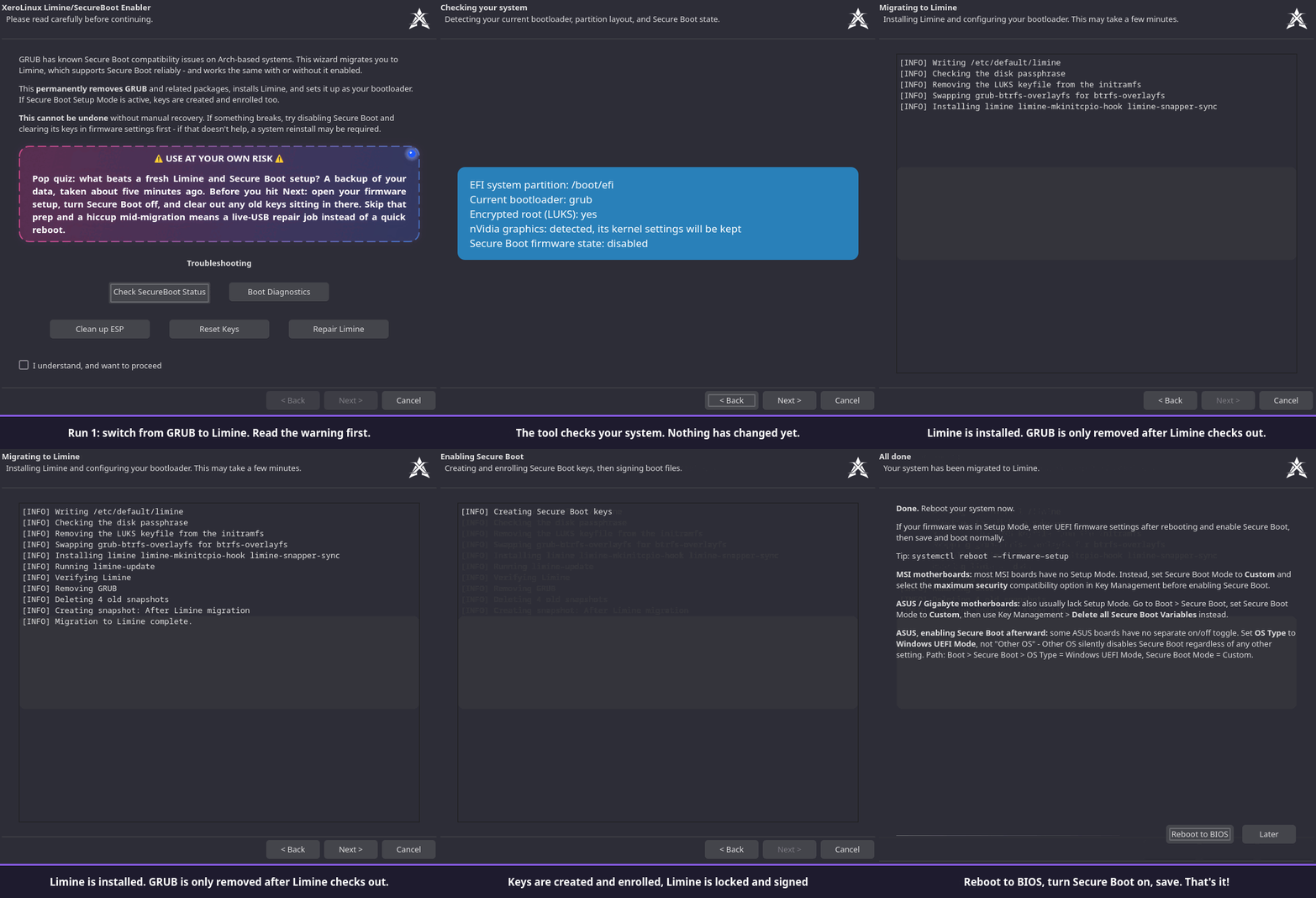
How-To Use
Section titled “How-To Use”-
Get ready. Back up your data, turn Secure Boot off in your BIOS/UEFI settings, and have your disk passphrase (and your Windows BitLocker recovery key, if you dual boot) at hand.
-
Install and open the tool.
Terminal window sudo pacman -S xsb-guiThen open Limine/SecureBoot Enabler from your app menu.
-
Run 1: switch to Limine. Tick “I understand”, press Next, answer any popups, and let it work. Reboot when it says so.
-
Clear your firmware keys. Reboot into your BIOS/UEFI settings and put Secure Boot in Setup Mode (“Clear Secure Boot keys”, “Delete all keys” or “Reset to Setup Mode”, depending on your board). Boot back into XeroLinux.
-
Run 2: turn on Secure Boot. Open the tool again. It sees Limine is already there and goes straight to Secure Boot setup.
-
Switch it on. Press Reboot to BIOS, turn Secure Boot on, save and exit. Done!
What it does
Section titled “What it does”- Moves you from GRUB to Limine. Limine comes from its own Arch packages (
limine,limine-mkinitcpio-hook), so it updates itself with the rest of your system. - Keeps GRUB until Limine is proven to work. GRUB is only removed after Limine is installed, registered in your firmware, and has a working boot entry.
- Turns on real Secure Boot. Limine’s settings are locked with a checksum, so nobody can swap your kernel or edit your boot menu without Limine refusing to start.
- Supports Btrfs + Snapper. Snapshots show up in the Limine boot menu after the switch.
- Supports nVidia systems. Your nVidia settings carry over; EFI space is checked.
- Keeps dual boot working. Windows and other Linux installs get their own Limine menu entry.
- Uses the current Microsoft certificates. Both the 2011 and 2023 Microsoft certificates are enrolled.
Requirements
Section titled “Requirements”- An installed XeroLinux system (FOSS or nVidia edition) currently booting with GRUB.
- UEFI mode, GPT partition table (every XeroLinux install is).
- Enough free space on your EFI partition. The tool checks this before changing anything.
- Chaotic-AUR enabled (default on XeroLinux). Btrfs snapshot support needs
limine-snapper-syncfrom there. - An internet connection to install packages.
Before you start
Section titled “Before you start”- Back up your data.
- Update your system and reboot once for a clean state.
- Turn Secure Boot off in BIOS/UEFI.
- Encrypted drive? Know your disk passphrase. See Encrypted drives.
- Dual boot with Windows? Save your BitLocker recovery key: aka.ms/myrecoverykey.
- Close other package managers (pamac, Octopi,
pacmanin a terminal).
Scenario notes
Section titled “Scenario notes”Btrfs and snapshots
Section titled “Btrfs and snapshots”The tool installs limine-snapper-sync (adds a Snapshots section to the Limine menu), removes grub-btrfs, and takes a fresh snapshot called “After Limine migration”. Snapshots taken before the switch cannot appear in the Limine menu and are risky to roll back to - only post-switch snapshots work normally. A popup explains this before anything changes; you must tick “I understand” to continue. You can optionally delete old snapshots to free EFI space.
Restore a snapshot with limine-snapper-restore or by booting it from the menu. On nVidia systems with an EFI partition under 4 GiB, the menu is limited to the 3 most recent snapshots (configure in /etc/limine-snapper-sync.conf).
Encrypted drives (LUKS)
Section titled “Encrypted drives (LUKS)”XeroLinux encrypted installs use a hidden key file inside the boot image so GRUB only asks once. With Limine that image is on the unencrypted EFI partition, so the tool removes the key file. It asks for your passphrase first - if wrong, nothing changes. From then on you type your passphrase once at every boot. If /home also uses that key file, it stays on the encrypted root and is only removed from the boot image.
nVidia systems
Section titled “nVidia systems”All nVidia settings (nvidia-drm.modeset=1, modprobe.blacklist=nouveau, etc.) carry over unchanged. Boot files are large, so the tool checks EFI space first. Boot Diagnostics warns if nvidia-drm.modeset=1 ever goes missing.
Dual boot
Section titled “Dual boot”Windows and shim-based distros (Ubuntu, Fedora, openSUSE) keep working with Secure Boot on. Plain-GRUB distros (no shim) will not boot once Secure Boot is on - the tool warns you beforehand. When Secure Boot keys change, BitLocker asks for your recovery key once; have it ready before Run 2.
How Secure Boot is set up
Section titled “How Secure Boot is set up”What gets signed with your key: only limine_x64.efi and fwupd. Kernels are not signed - Limine checks them by checksum (BLAKE2B hash baked into the signed binary). Windows and other OS files are never touched.
Microsoft certificates (2011 and 2023): both are enrolled via sbctl enroll-keys -m. The 2011 certs cover existing Windows and most GPU firmware. The 2023 certs cover newer Windows boot managers and Linux shims. Firmware does not check expiry dates so the 2011 certs keep working despite being expired. After enrolling, the tool verifies the 2023 certs are actually present before locking anything.
Config lock: the checksum of limine.conf is baked into the signed Limine binary. Editing it by hand breaks boot.
Built-in tools
Section titled “Built-in tools”| Button | What it does |
|---|---|
| Check SecureBoot Status | Shows whether Secure Boot is on, whether your firmware is in Setup Mode, and whether the keys are yours. |
| Boot Diagnostics | Looks for problems: missing files, boot entries, leftover key files, missing nVidia settings. Changes nothing. |
| Clean up ESP | Removes leftover kernels and old bootloader files from the EFI partition. Preview shown first. |
| Reset Keys | Deletes the Secure Boot keys this tool created. Firmware is not changed - clear its keys in BIOS/UEFI too. Refuses while Secure Boot is on. |
| Repair Limine | Reinstalls, re-registers Limine, rebuilds boot entries. Also upgrades older tool installs. Preview shown first. |
Troubleshooting
Section titled “Troubleshooting”“Secure Boot is already enabled in firmware” - Turn Secure Boot off in BIOS/UEFI, then run the tool again.
“Secure Boot keys are already enrolled in firmware, but not by this tool” - Clear all Secure Boot keys in firmware (Setup Mode), then run Secure Boot setup again.
“Microsoft 2023 certificates are missing from your firmware” - Clear keys in firmware, run sudo /usr/lib/xsb-gui/xsb-helper reset-keys, run Secure Boot setup again. If it repeats, update your motherboard firmware.
“Boot your normal system first” - You booted from a snapshot. Reboot into your normal system.
“Another package operation is running” - Close pamac/Octopi/pacman, then try again. If nothing is running, reboot (stale lock file).
“Not enough free space on the EFI partition” - Use Clean up ESP, remove unused kernels, or enlarge the partition.
Wrong passphrase rejected - Nothing changed. Check keyboard layout (boot prompt may use US layout).
Old snapshots not in the boot menu - Expected. Only post-switch snapshots appear.
Another Linux stopped booting after Secure Boot on - It uses plain GRUB without shim. Turn Secure Boot off to boot it, or reinstall that distro with shim.
Black screen after Secure Boot on - Turn Secure Boot off, run Boot Diagnostics. Usually means firmware rejected key enrollment - clear keys and redo Secure Boot setup.
Something failed during the switch - GRUB stays in place until the very last step, so your system still boots. Use Save Detailed Log… and share it when asking for help.
Manual method (terminal)
Section titled “Manual method (terminal)”For users who already have Limine installed and want to enable Secure Boot from the terminal. Pick the scenario that matches your setup.
Scenario 1: Standard install (no LUKS, no Btrfs, single OS)
Section titled “Scenario 1: Standard install (no LUKS, no Btrfs, single OS)”Prerequisites: Limine already installed and booting. Secure Boot off. Firmware in Setup Mode.
Step 1 - Install sbctl (0.18 or newer):
sudo pacman -S sbctlStep 2 - Verify Setup Mode:
sbctl statusMust show Setup Mode: Enabled. If Disabled, clear keys in firmware first.
Step 3 - Create your keys:
sudo sbctl create-keysStep 4 - Lock the Limine config (must happen before signing):
sudo limine enroll-configThis bakes a checksum of limine.conf into the Limine EFI binary. Any later change to the config, kernel or initramfs requires repeating this step and re-signing.
Step 5 - Sign EFI files:
sudo sbctl sign -s /boot/EFI/BOOT/BOOTX64.EFIsudo sbctl sign -s /boot/EFI/limine/limine_x64.efisudo sbctl verifyThe -s flag saves each path so it is re-signed automatically on future Limine package updates. Sign everything sbctl verify lists as unsigned.
Step 6 - Enroll keys with Microsoft certificates:
sudo sbctl enroll-keys -mThe -m flag is required. Without it Windows will not boot and some machines will not POST. This enrolls both the 2011 and 2023 Microsoft certificates.
Step 7 - Enable Secure Boot in BIOS/UEFI and confirm:
Reboot into firmware, turn Secure Boot on, save and exit, then boot back into XeroLinux.
sbctl statusMust show Secure Boot: Enabled and Vendor Keys: none (or microsoft).
Scenario 2: Encrypted drive (LUKS)
Section titled “Scenario 2: Encrypted drive (LUKS)”XeroLinux encrypted installs use a hidden key file inside the initramfs so GRUB only asks for your passphrase once. With Limine the initramfs lives on the unencrypted EFI partition, exposing that key file. You must remove it first.
Step 1 - Find the key file slot:
sudo cryptsetup luksDump /dev/YOUR_ROOT_PARTITION | grep -A2 "Keyslot"Identify which slot belongs to the key file (usually slot 1; slot 0 is your passphrase).
Step 2 - Remove the key file from the initramfs and from LUKS:
sudo mkinitcpio -PThen remove the key file slot (replace 1 with the actual slot number):
sudo cryptsetup luksKillSlot /dev/YOUR_ROOT_PARTITION 1Confirm with your passphrase when prompted. If the passphrase is wrong, nothing changes.
Step 3 - Rebuild the initramfs without the key file:
sudo mkinitcpio -PStep 4 - Follow Scenario 1 steps 1-7 completely.
From this point your system will ask for your passphrase once at every boot before XeroLinux starts.
Scenario 3: Btrfs + Snapper
Section titled “Scenario 3: Btrfs + Snapper”Limine uses a different snapshot integration than GRUB. The grub-btrfs package must be replaced with limine-snapper-sync.
Step 1 - Install the Limine snapshot integration:
sudo pacman -S limine-snapper-syncStep 2 - Remove grub-btrfs:
sudo pacman -R grub-btrfssudo systemctl disable --now grub-btrfsd.serviceStep 3 - Enable the Limine snapshot sync service:
sudo systemctl enable --now limine-snapper-sync.timerStep 4 - Take a snapshot before proceeding:
sudo snapper -c root create --description "Before Secure Boot setup"Step 5 - Follow Scenario 1 steps 1-7 completely.
After the switch, new snapshots will appear in the Limine boot menu automatically. Old pre-switch snapshots will not appear and are risky to restore from (GRUB-era kernel files).
Scenario 4: Dual boot with Windows
Section titled “Scenario 4: Dual boot with Windows”Step 1 - Locate the Windows boot manager:
ls /boot/EFI/Microsoft/Boot/The file you need is bootmgfw.efi in that directory.
Step 2 - Verify Limine has a Windows entry in its config:
cat /boot/efi/limine.conf | grep -A3 -i windowsIf there is no Windows entry, add one to /etc/default/limine:
/efi=\EFI\Microsoft\Boot\bootmgfw.efi comment=Windows Boot ManagerThen run sudo limine-update.
Step 3 - Follow Scenario 1 steps 1-7 completely.
The -m flag in sbctl enroll-keys -m is what keeps Windows bootable - it enrolls the Microsoft certificates your Windows boot manager is signed with. Never skip it.
Step 4 - Test both OSes before finishing.
Boot Windows once to confirm it works (entering the BitLocker recovery key if prompted). Then reboot into XeroLinux and confirm Secure Boot is on.
Scenario 5: nVidia
Section titled “Scenario 5: nVidia”nVidia’s kernel modules may be refused by a kernel with lockdown active. First check whether your kernel enforces lockdown:
Step 1 - Check lockdown state:
cat /sys/kernel/security/lockdownnone- modules load normally. No extra steps needed. Continue with Scenario 1.integrityorconfidentiality- unsigned modules are refused. The nVidia modules must be signed before enabling Secure Boot.
Step 2 (only if lockdown is not none) - Sign the nVidia modules:
sudo sbctl sign-allOr sign the specific module files:
find /usr/lib/modules -name "nvidia*.ko*" | while read f; do sudo sbctl sign "$f"doneStep 3 - Ensure nVidia settings carry over to Limine:
grep "nvidia" /etc/default/limineThe kernel parameters nvidia-drm.modeset=1 and modprobe.blacklist=nouveau must be present. If missing, add them to the KERNEL_PARAMS line in /etc/default/limine, then run sudo limine-update.
Step 4 - Check EFI partition space. nVidia boot images are large:
df -h /boot/efiNeed at least 300-400 MB free before signing and enrolling.
Step 5 - Follow Scenario 1 steps 1-7 completely.
After boot, verify modules load:
lsmod | grep nvidiaFor advanced users
Section titled “For advanced users”Command line
Section titled “Command line”The wizard runs everything through one helper, which you can also call directly:
sudo /usr/lib/xsb-gui/xsb-helper <command> [--dry-run]| Command | What it does |
|---|---|
preflight | Runs all system checks. Changes nothing. |
migrate | Switches from GRUB to Limine. Options: --delete-old-snapshots, --luks-passphrase-stdin. |
enable-secureboot | Creates and adds keys, locks Limine’s settings, signs Limine. |
repair-limine | Repairs or upgrades an existing Limine setup. Option: --luks-passphrase-stdin. |
cleanup | Frees space on the EFI partition. |
doctor | Runs Boot Diagnostics. |
status | Shows bootloader and Secure Boot state. |
reset-keys | Clears the local sbctl keys (never touches firmware). Refuses while Secure Boot is on. |
apply-splash | Applies the XeroLinux boot menu wallpaper. |
--dry-run shows what would happen without changing anything.
Files the tool manages
Section titled “Files the tool manages”| Path | Purpose |
|---|---|
/etc/default/limine | Limine settings: EFI path, kernel command line, fallback, settings lock. Edit this, then run sudo limine-update. |
/boot/efi/limine.conf | The generated boot menu. Do not edit by hand when Secure Boot is on. |
/boot/efi/EFI/limine/limine_x64.efi | Limine itself (signed once Secure Boot is set up). |
/boot/efi/EFI/BOOT/BOOTX64.EFI | Backup copy of Limine, for firmware that forgets its boot entries. |
/etc/limine-snapper-sync.conf | Snapshot boot menu settings. |
/etc/mkinitcpio.conf.xsb.bak | Your mkinitcpio settings from before the switch (Btrfs only). |